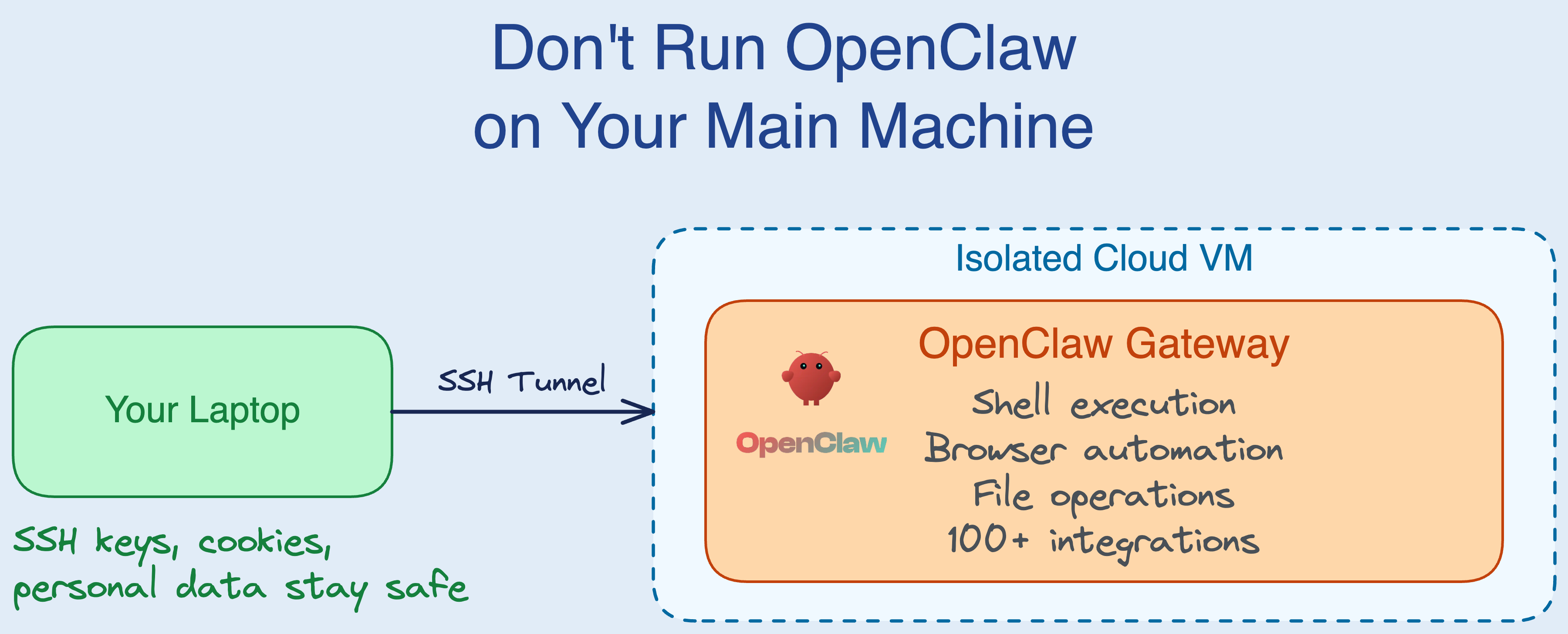
OpenClaw is a self-hosted AI agent that connects to WhatsApp, Telegram, Slack, Discord, and dozens of other services. Give it a task over chat, and it executes shell commands, browses the web, reads and writes files, and calls APIs on your behalf. It exploded to over 215k GitHub stars in a matter of weeks.
But OpenClaw needs deep access to the machine it runs on: shell execution, file system access, browser automation. These capabilities are what make it useful - and also what make running it on your personal laptop a bad idea. Within weeks of going viral, reports of exposed instances, prompt injection attacks, and malicious plugins started piling up.
This post covers why you shouldn’t run OpenClaw on your main machine, what your isolation options are, and how to set it up on a cloud VM.
What OpenClaw does
OpenClaw is a self-hosted AI agent gateway, created by Peter Steinberger (originally under the names Clawdbot and Moltbot). It runs a persistent process - the “gateway” - that connects large language models (primarily Anthropic’s Claude) to your messaging platforms. You chat with it on WhatsApp or Telegram like you’d text a friend, and it executes tasks using a rich set of tools:
- Shell execution: Run commands on the host machine
- Browser automation: Navigate websites, fill forms, take screenshots via Playwright
- File operations: Read, write, and edit files
- 100+ service integrations: Gmail, GitHub, Notion, Spotify, calendars, and more
- Persistent memory: Vector-based memory that carries across conversations
- Scheduled tasks: Cron-like “heartbeats” that run autonomously on a timer
The MacStories review captured why people find it compelling: “To say that Clawdbot has fundamentally altered my perspective of what it means to have an intelligent, personal AI assistant in 2026 would be an understatement.” Users on Hacker News report using it for everything from autonomous code review to managing Slack channels to running overnight research tasks on a Mac Mini M4.
OpenClaw also powers Moltbook, a social network exclusively for AI agents, which went viral with over 770,000 active agents within its first week. Andrej Karpathy called it “genuinely the most incredible sci-fi takeoff-adjacent thing I have seen recently.” The New York Times, The Economist, and CACM have all covered the phenomenon.
Why you shouldn’t run it on your main machine
OpenClaw’s architecture gives the AI agent roughly the same level of access that you have on your machine. When security researchers say it has “root access,” they’re not exaggerating by much. The agent can:
- Execute shell commands as your user (or as root, if elevated mode is configured)
- Read any file your user can - including SSH keys,
.envfiles, browser cookies - Send emails, post messages, and interact with APIs using your stored credentials
- Install software, modify system configs, and run background processes
This is by design. The agent needs these capabilities to be useful. But a single prompt injection - a malicious instruction hidden in an email, a web page, or a chat message - can turn all of that access against you.
Andrej Karpathy put it after buying a Mac Mini to experiment with claws: he’s “a bit sus’d to run OpenClaw specifically - giving my private data/keys to 400K lines of vibe coded monster that is being actively attacked at scale is not very appealing at all.” He cites reports of exposed instances, RCE vulnerabilities, supply chain poisoning, and malicious skills in the registry — calling it “a complete wild west and a security nightmare.”
Prompt injection problem
The core issue is that LLMs cannot reliably distinguish between your legitimate instructions and malicious instructions embedded in content they process. As security researcher Nathan Hamiel put it in Gary Marcus’s analysis: “These systems are operating as ‘you.’ They operate above the security protections provided by the operating system and the browser. Application isolation and same-origin policy don’t apply to them.”
This isn’t theoretical. Moltbook was attacked within days of launch, with researchers demonstrating that AI-to-AI manipulation is “both effective and scalable.” A malicious “skill” (plugin) titled “What Would Elon Do?” was found exfiltrating session tokens using hidden prompt injection.
Real vulnerabilities have already surfaced
- CVE-2026-25253: An unauthenticated WebSocket vulnerability that allowed malicious websites to silently extract authentication tokens and issue commands to OpenClaw instances.
- 21,000+ exposed instances: Researchers found thousands of publicly accessible OpenClaw gateways on the open internet.
- Moltbook database leak: The Moltbook database was exposed, allowing anyone to take control of any agent on the platform.
- Supply chain attacks: Each of OpenClaw’s rebrands (Clawdbot -> Moltbot -> OpenClaw) left behind abandoned package names that attackers hijacked to distribute malicious updates.
The OpenClaw maintainers acknowledge the challenge in their documentation: “There is no ‘perfectly secure’ setup.”
The consensus from security researchers is clear: run OpenClaw in an isolated environment. Whether that’s a Docker container, a dedicated VM, or a separate physical machine - keep it away from your personal data and credentials.
Your isolation options
So you want to run OpenClaw but keep it away from your personal machine. There are a few approaches:
Docker. Simon Willison’s Docker-based setup is a reasonable starting point. You mount only the directories you want the agent to access and keep everything else off-limits. The downside: the container still runs on your laptop, sharing your network, and Docker escape vulnerabilities - while rare - do exist. You’re also trusting that you’ve configured the container boundaries correctly.
Dedicated hardware. Karpathy and namy Hacker News users have reported buying cheap Mac Minis as dedicated claw machines. This gives you real physical isolation, but it means buying and maintaining another machine, keeping it updated, and dealing with it sitting on your desk.
Cloud VM. This gives you the strongest isolation. OpenClaw runs on a machine that has none of your personal data, credentials, or SSH keys. If the agent gets compromised, the blast radius is limited to that VM. And you can destroy it entirely and start fresh.
The rest of this post focuses on the cloud VM approach.
Setting up OpenClaw on a cloud VM
If you provision a cloud VM yourself (an EC2 instance, a GCE VM, etc.), here’s a setup script that installs and configures OpenClaw:
#!/bin/bash
set -e

# Install Node.js 22 (required by OpenClaw)
if ! node --version 2>/dev/null | grep -q "v22"; then
  curl -fsSL https://deb.nodesource.com/setup_22.x | sudo -E bash -
  sudo apt-get install -y nodejs
fi

# Install OpenClaw
sudo npm install -g openclaw@latest

# Generate a config with a random auth token
if [ ! -f ~/.openclaw/openclaw.json ]; then
  mkdir -p ~/.openclaw
  GATEWAY_TOKEN=$(openssl rand -hex 16)
  echo "=========================================="
  echo "New WebChat token: $GATEWAY_TOKEN"
  echo "=========================================="

  cat > ~/.openclaw/openclaw.json << EOF
{
  "agents": {
    "defaults": {
      "model": {
        "primary": "anthropic/claude-opus-4-6"
      }
    }
  },
  "gateway": {
    "mode": "local",
    "auth": {
      "mode": "token",
      "token": "$GATEWAY_TOKEN"
    }
  }
}
EOF
else
  echo "Existing configuration found — reusing."
fi

# Make sure your ANTHROPIC_API_KEY is set in the environment, then:
openclaw gateway --verbose

This works, but you still need to handle the tedious parts yourself: picking an instance type, provisioning the VM, configuring SSH access, opening the right security group rules (or not - see below), making sure you stop the instance when you’re not using it so you don’t burn money, and tearing it all down when you’re done.
Simplifying with SkyPilot
SkyPilot is an open-source framework for running workloads on any cloud. It handles provisioning, setup, and lifecycle management through a single YAML file. We used it to wrap the OpenClaw setup above into something you can launch with one command on AWS, GCP, Azure, K8s, RunPod, Nebius, or any supported cloud.
Here is the full openclaw.yaml:
resources:
  cpus: 2+
  memory: 4+

secrets:
  ANTHROPIC_API_KEY:

setup: |
  # Install Node.js 22 (required by OpenClaw)
  if ! node --version 2>/dev/null | grep -q "v22"; then
    curl -fsSL https://deb.nodesource.com/setup_22.x | sudo -E bash -
    sudo apt-get install -y nodejs
  fi

  # Install OpenClaw
  sudo npm install -g openclaw@latest

  # Only write configuration on first launch.
  # On subsequent launches the existing config is reused.
  if [ ! -f ~/.openclaw/openclaw.json ]; then
    mkdir -p ~/.openclaw
    GATEWAY_TOKEN=$(openssl rand -hex 16)
    echo "=========================================="
    echo "First launch — generating new WebChat token: $GATEWAY_TOKEN"
    echo "=========================================="

    cat > ~/.openclaw/openclaw.json << EOF
  {
    "agents": {
      "defaults": {
        "model": {
          "primary": "anthropic/claude-opus-4-6"
        }
      }
    },
    "gateway": {
      "mode": "local",
      "auth": {
        "mode": "token",
        "token": "$GATEWAY_TOKEN"
      }
    }
  }
  EOF
  else
    echo "=========================================="
    echo "Existing configuration found — reusing."
    echo "=========================================="
  fi

run: |
  # Start the OpenClaw gateway
  openclaw gateway --verbose
A few things to note:
resources: OpenClaw doesn’t need a GPU. A 2-CPU, 4 GB RAM instance is enough. SkyPilot automatically finds the cheapest option across your configured clouds.secrets: ANTHROPIC_API_KEY: Passed at launch time via--env, so the key is available to the process but never baked into the YAML file itself.- No open ports: The gateway binds to localhost by default. You access WebChat through an SSH tunnel, so the WebChat port is never exposed to the public internet.
- First-launch config: The setup script only generates a config and auth token on the first launch. On subsequent launches, it detects the existing config on disk and reuses it.

Quickstart
Install SkyPilot and configure your cloud credentials:
pip install 'skypilot[aws]'  # or [gcp], [azure], etc.
sky check
Launch OpenClaw:
sky launch -c openclaw openclaw.yaml --env ANTHROPIC_API_KEYSkyPilot provisions a VM, installs Node.js and OpenClaw, generates a gateway auth token, and starts the gateway. The token is printed in the setup logs.
Open an SSH tunnel and access WebChat in your browser:
ssh -L 18789:localhost:18789 openclawThe WebChat port is bound to
localhoston the VM and is not exposed to the public internet - it is only reachable through the encrypted SSH tunnel. This sidesteps the class of vulnerabilities (like CVE-2026-25253) that rely on the gateway being network-accessible.Then open http://localhost:18789. Enter the gateway token when prompted.


Connecting messaging channels
To pair WhatsApp, Telegram, or other channels, SSH into the VM and run the onboarding wizard:
ssh openclaw

# Interactive wizard - walks through all available channels
openclaw onboard

# Or connect channels directly:
openclaw channels login --channel whatsapp   # scan QR code to link
openclaw channels login --channel telegram   # requires a BotFather token
openclaw channels login --channel discord
Channel credentials are stored in ~/.openclaw on the VM’s disk, so they persist across sky stop/sky start cycles.
Managing the cluster
Use sky stop to pause the cluster while preserving all state on disk. When you’re ready to resume, sky start brings it back with everything intact - same auth token, same channel connections, same conversation history:
# Pause the cluster (state preserved on disk)
sky stop openclaw

# Resume later
sky start openclaw
To permanently tear down the cluster and its disk:
sky down openclaw
Note:
sky downdeletes the VM and its disk, so any locally stored state will be lost. If you prefer usingsky downoversky stop, you can persist state to an S3 bucket (Appendix A) or rsync it to your local machine (Appendix B).
What isolation buys you
Running OpenClaw on a cloud VM instead of your laptop gives you a few concrete protections:
Your credentials stay local. Your SSH keys, browser sessions, password manager database, email cookies, and corporate VPN credentials never touch the VM. Even if the agent is tricked into exfiltrating data, there’s nothing sensitive to steal beyond the Anthropic API key you explicitly provided.
The blast radius is bounded. A compromised OpenClaw instance can only damage what’s on that VM: a bare Linux install, Node.js, and OpenClaw itself.
No exposed ports. The WebChat UI is accessed through an SSH tunnel, so there’s no open port on the public internet. This avoids the exact problem that led to 21,000+ OpenClaw instances being found exposed online.
Teardown is real cleanup. sky down destroys the VM entirely. Compare this to discovering your laptop was compromised and trying to figure out what was touched.
Cost is reasonable. A 2-CPU, 4 GB cloud instance runs about $0.03–0.05/hour depending on the cloud. If you use OpenClaw for a few hours a day and sky stop the rest of the time, you’re looking at a few dollars a month. Even running 24/7, it’s under $30/month. Compare that to buying a dedicated Mac Mini M4 at $599+. The VM is by far the cheapest way to try OpenClaw and see if it fits your workflow. If you end up running it heavily for months on end, the math may eventually favor dedicated hardware — but a cloud VM lets you start experimenting for pocket change, with no upfront commitment. Use sky stop when you’re not using it to stop paying for compute while keeping your state intact, or configure SkyPilot auto-stop to shut down the VM after a period of inactivity.
Wrapping up
OpenClaw is one of the first AI agents to see real adoption outside of demos and early-adopter circles. But the security tradeoffs are real - prompt injection is unsolved, vulnerabilities have already been exploited in the wild, and the tool’s design requires broad system access to function. Running it on your primary machine is a risk that’s hard to justify when isolation is straightforward.
A cloud VM keeps OpenClaw away from your personal data and credentials. You can set one up manually with the script above, or use the SkyPilot YAML to automate provisioning and lifecycle management across any cloud.
Appendix A: Persistent storage with S3
If you prefer using sky down (which fully deletes the VM) instead of sky stop, you can persist OpenClaw state to an S3 bucket so that nothing is lost between teardowns.
- Create an S3 bucket (one-time):
aws s3 mb s3://openclaw-state
- Add the following to
openclaw.yaml:
secrets:
  OPENCLAW_BUCKET: openclaw-state

file_mounts:
  ~/.openclaw:
    source: s3://${OPENCLAW_BUCKET}
    mode: MOUNT_CACHED
MOUNT_CACHED uses rclone with local disk caching, which supports full POSIX write operations (including the append writes OpenClaw uses for session transcripts) and asynchronously syncs changes back to S3.
With this setup, you can sky down openclaw and later sky launch again - the gateway picks up right where it left off with all channels connected and history intact.
To use a custom bucket name:
sky launch -c openclaw openclaw.yaml \
  --env ANTHROPIC_API_KEY \
  --env OPENCLAW_BUCKET=my-openclaw-bucket
To permanently delete all persisted data:
aws s3 rb s3://openclaw-state --force
Appendix B: Syncing state with rsync
If you’d rather not set up a cloud storage bucket, you can use rsync to copy OpenClaw’s state directory to your local machine before tearing down the VM. SkyPilot clusters are accessible as SSH hosts, so standard rsync works directly.
Download state from the VM:
rsync -Pavz openclaw:~/.openclaw/ ~/openclaw-backup/
This copies the full ~/.openclaw directory - config, auth tokens, channel credentials, conversation history - to a local backup folder.
Upload state to a new VM:
After launching a fresh cluster with sky launch, push the backup before starting the gateway:
# Launch without running the gateway yet
sky launch -c openclaw openclaw.yaml --env ANTHROPIC_API_KEY

# Upload the saved state
rsync -Pavz ~/openclaw-backup/ openclaw:~/.openclaw/
This approach is simpler than S3, no bucket to create or manage, but it requires you to remember to rsync before running sky down. If you forget, the state is gone with the VM.
For more details on syncing files with SkyPilot clusters, see the SkyPilot docs on syncing code and artifacts.
To receive latest updates, please star and watch the project’s GitHub repo, follow @skypilot_org, or join the SkyPilot community Slack.